
You open a new tab, and the box in the middle of the screen says "Search Google or type a URL." Maybe you've wondered what that actually means. Is it asking you a question? Is it a setting you're supposed to change? Should you be worried about it?
Nothing is broken. Your browser is simply telling you that a single box handles two different jobs: you can search the web by typing words or a question, or you can go directly to a website by typing its address.
If you don't want to read the whole guide, here's the short version:
- You know the website? Type its address, like wikipedia.org, and the browser takes you straight there without a search.
- You don't know the website? Type a few words or a question, and your default search engine (usually Google) shows you a list of results.
- Your search engine changed on its own, or pages keep redirecting somewhere unexpected? That's a different problem, and it could mean a rogue extension or malware. Skip to how to fix it.
Everything in this guide was tested by hand on 30 September 2026, using fresh copies of Chrome 154 and Firefox 156 on a Mac, Safari 26.5 on the same Mac, and Safari on an iPhone running iOS 26.5. Halfway through testing, Chrome changed the wording of the phrase itself, which is something most explanations of it haven't caught up with yet.
What does "Search Google or type a URL" mean?
"Search Google or type a URL" is the placeholder text in Chrome's search box and address bar. It tells you the box accepts two kinds of input: words you want Google to search for, or a web address (a URL) you want to open directly. The text is only a hint, so it disappears as soon as you start typing.
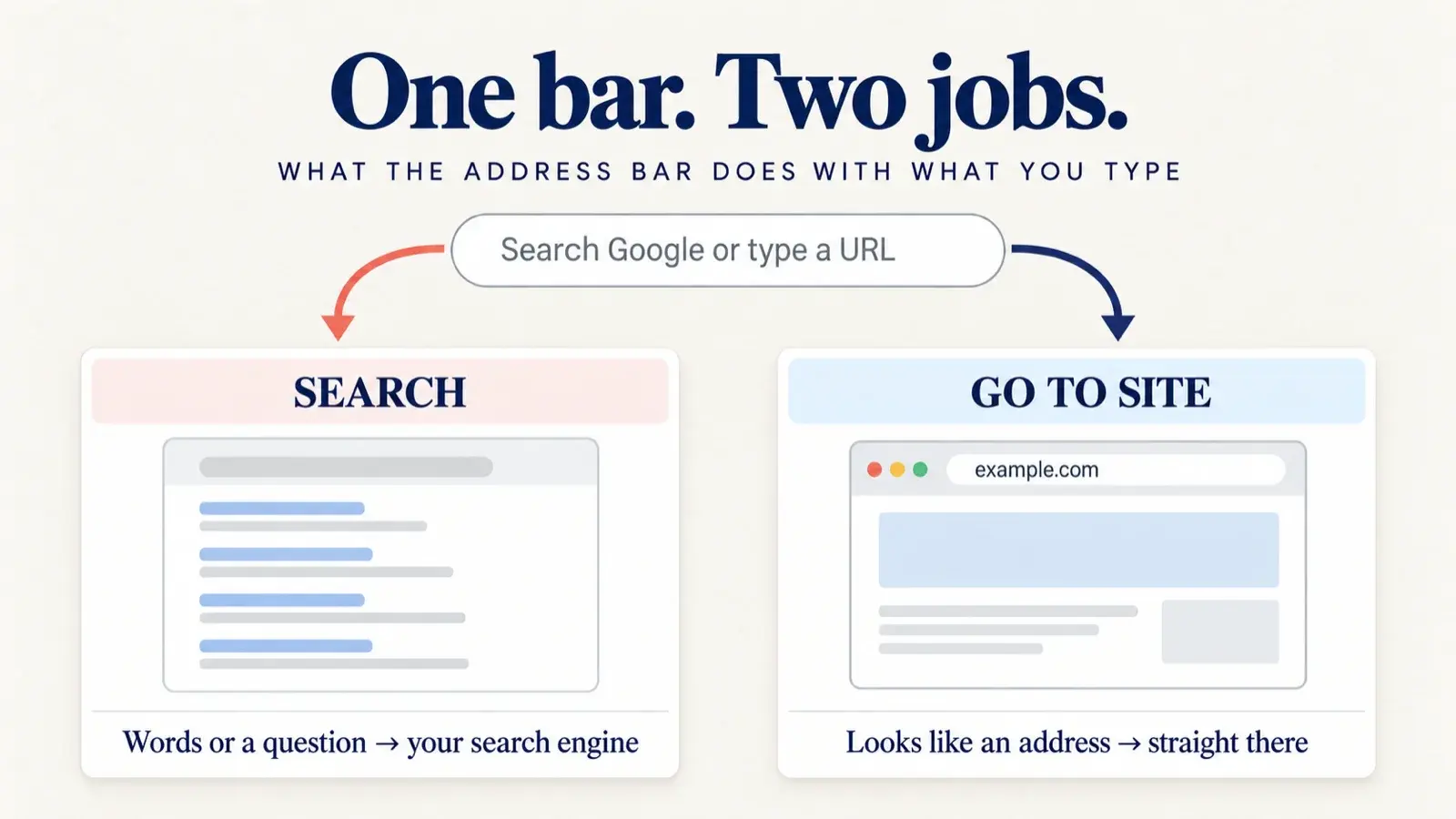
Chrome calls this combined field the omnibox, a name built from "omni" (meaning all) and "box". Early browsers had two separate fields at the top of the window, one for web addresses and one for searches. Chromium's design documentation explains why they were merged: having to decide which box to type into was a small but constant mental burden, and a single intelligent field removes that decision entirely.
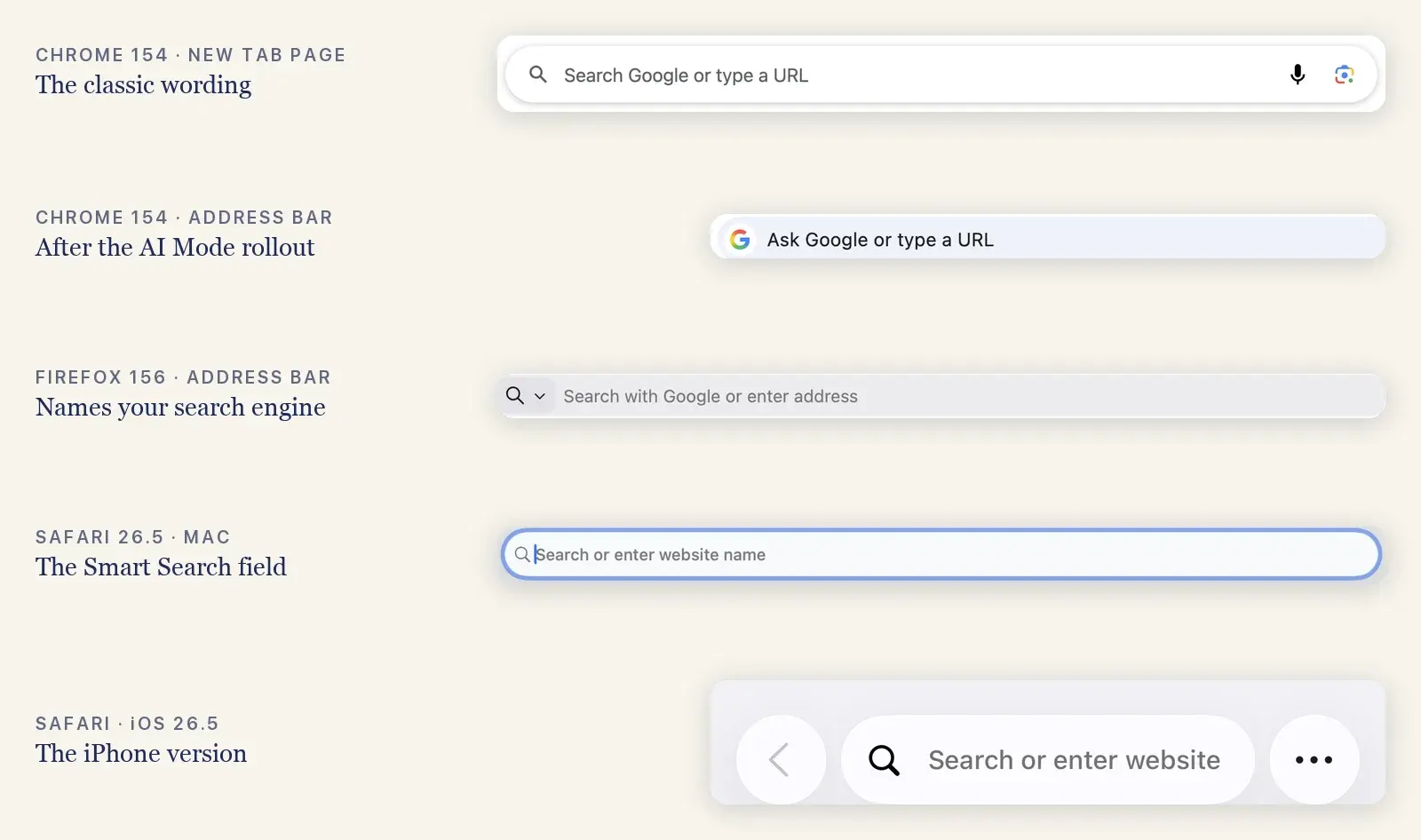
Every major browser now works the same way, although the names and wording differ. Apple calls Safari's version the Smart Search field, while Firefox and Edge simply call theirs the address bar. Here's what each browser actually displays:
| Where | What the box says | How it was checked |
|---|---|---|
| Chrome, new tab page | Search Google or type a URL | Screenshot, Chrome 154 on macOS |
| Chrome, address bar with AI Mode | Ask Google or type a URL | Screenshot, Chrome 154 on macOS |
| Chrome, new tab page with AI Mode | Ask Google | Screenshot, Chrome 154 on macOS |
| Chrome on Android | Search or type URL | Screenshot, Chrome 133 on an Android 16 emulator |
| Firefox | Search with Google or enter address | Screenshot, Firefox 156 on macOS |
| Safari on Mac | Search or enter website name | Screenshot, Safari 26.5 on macOS |
| Safari on iPhone | Search or enter website | Screenshot, iOS 26.5 simulator |
Why Chrome now says "Ask Google" instead
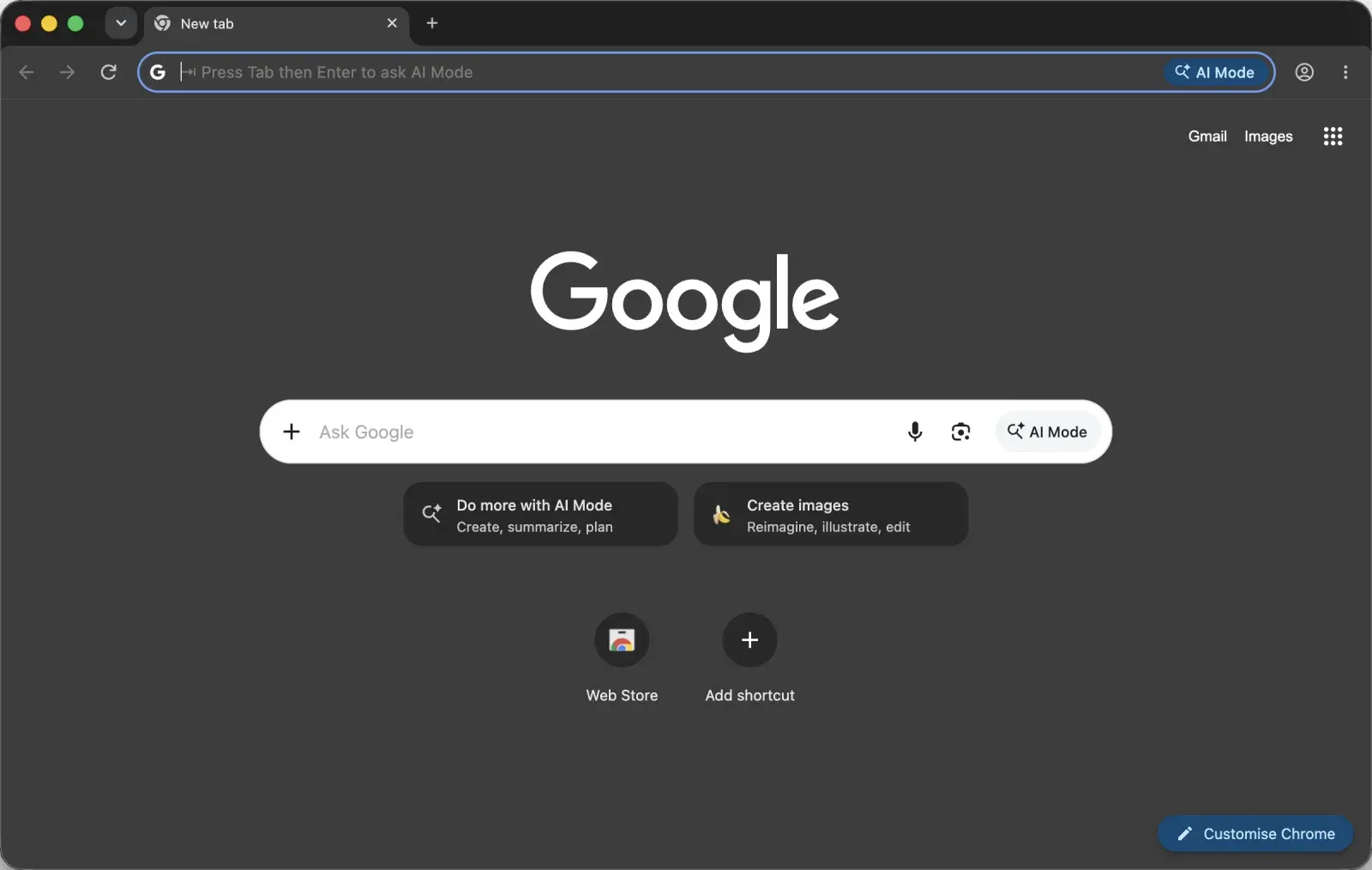
This is the part other guides don't show. When I opened a brand-new Chrome 154 profile on a Mac, the new tab page displayed the familiar "Search Google or type a URL." After closing Chrome and reopening the same profile a few minutes later, the box said "Ask Google" instead, an AI Mode button appeared inside it, and the address bar read "Ask Google or type a URL."
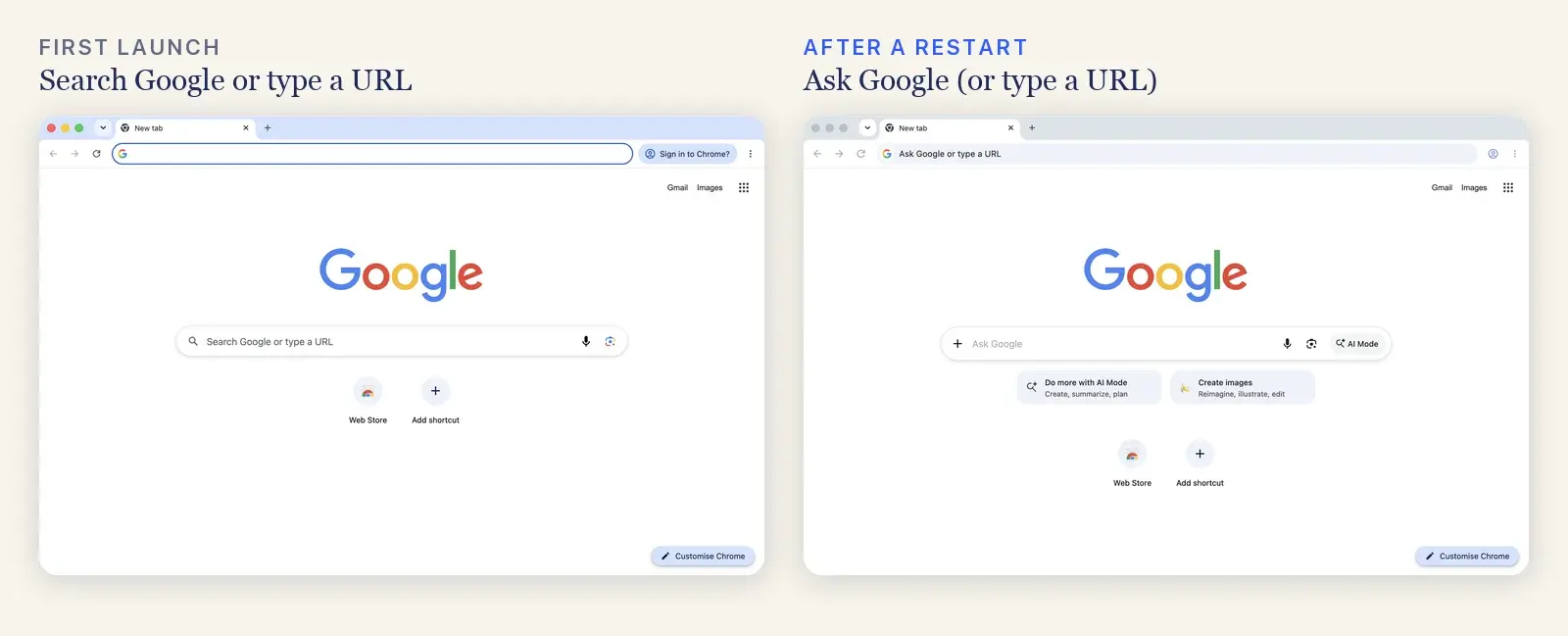
Nothing on the computer changed between those two launches. The most likely explanation is that Chrome downloaded its feature configuration from Google in the background, which is how Google gradually switches features on for different groups of people. That's also why two people using the same version of Chrome can see different wording. Chrome's help page on AI Mode confirms the feature isn't available to everyone yet and is slowly reaching more countries and languages. Google first put AI Mode in Chrome's address bar in September 2025, starting with English speakers in the US, so this new wording is the latest step in a rollout that has been running for a year.
The new wording signals a third job for the box. Besides searching the web and opening a site, you can now ask AI Mode a question and receive a written answer instead of a list of links. To use it, click the AI Mode button, or type your question and press Tab followed by Enter. When the box is empty, Chrome's address bar even spells out the shortcut: "Press Tab then Enter to ask AI Mode."
If you'd rather stick with regular search, you don't need to do anything, because pressing Enter still runs a normal Google search. In June 2026, Google's Rajan Patel said the company isn't planning to make AI Mode the default for Chrome searches. There is one catch: Chrome 154 has no setting to hide the AI Mode button. Searching Chrome's settings for "AI Mode" turns up only options for connected apps.
What is a URL?
URL stands for Uniform Resource Locator, which is a technical way of saying web address. MDN Web Docs defines it as the address of a unique resource on the web. A complete URL looks like this:
https://www.example.com/blog/post?ref=home#faq| Part | Example | What it does |
|---|---|---|
| Protocol | https:// | Tells the browser how to connect. The s means the connection is encrypted. |
| Domain | www.example.com | The website's name |
| Path | /blog/post | A specific page on that website |
| Parameters | ?ref=home | Extra information passed to the page |
| Fragment | #faq | Jumps to a particular section of the page |
You rarely need to type all of that. For everyday browsing the domain on its own is enough, so typing wikipedia.org will get you where you want to go. The browser fills in the rest, and since 2021 Chrome has tried the secure https:// version first whenever you leave it out.
How do you type a URL?
- Click the address bar at the top of the browser window, or press Ctrl + L (Cmd + L on a Mac) to jump straight to it.
- Type the domain, such as wikipedia.org. You can leave out https:// and www, because the browser adds them for you.
- Check the spelling and the ending carefully, since example.com, example.co and example.org can belong to three completely different owners.
- Press Enter to load the page.
There's also a handy shortcut for .com websites. Type only the name, like youtube, and press Ctrl + Enter (Ctrl + Return on a Mac), and Chrome automatically adds www. and .com before opening www.youtube.com.
That spelling check matters more than it sounds. Scammers deliberately register addresses that are one letter away from well-known brands, hoping people will mistype them. If a site you typed looks slightly unfamiliar, don't enter a password or payment details until you've double-checked the address.
How does your browser know whether to search or open a site?
Browsers can't read your mind, so they rely on heuristics, which is really just a fancy word for educated guesses based on patterns. If what you typed looks like an address, with a dot and a recognisable ending, a port number or an IP address, the browser treats it as a website. If it looks like ordinary words, the browser treats it as a search.
Chromium's design notes admit that single words are the difficult case, because they could be either a search or the name of a computer on your network. Chrome's solution is to run the search immediately while quietly checking in the background whether a machine with that name exists. If it finds one, it offers a prompt such as "Did you mean http://zoom/?" so you can go there instead.
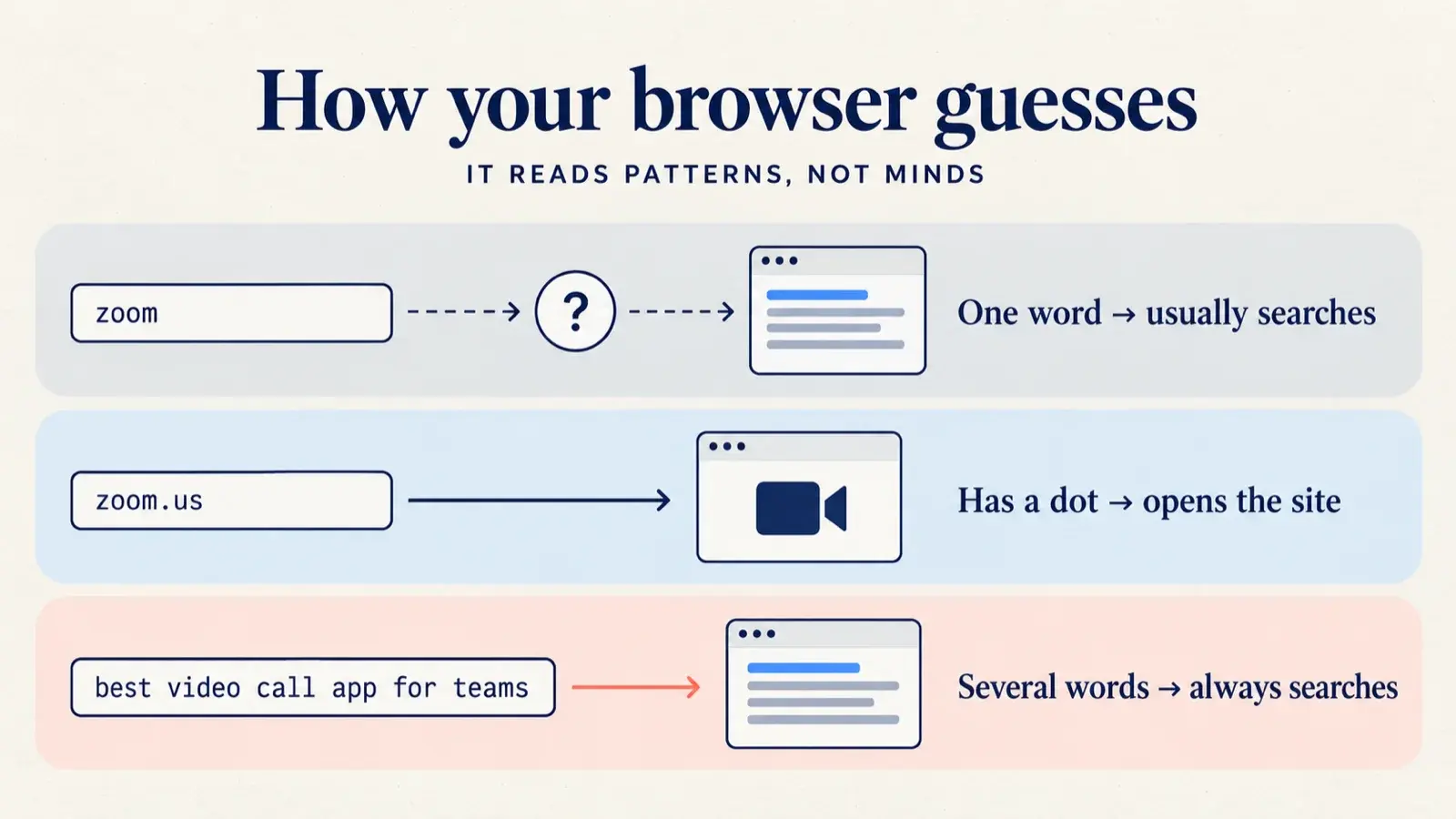
To see these rules in action, I typed the same seven inputs into both Chrome 154 and Firefox 156 and recorded what each browser chose. The top suggestion is what happens when you press Enter, and the two browsers agreed every time:
| What I typed | Chrome 154 | Firefox 156 | Why |
|---|---|---|---|
| zoom | Searches Google | Searches Google | A single word could be a site or a topic |
| zoom.us | Opens the site | Opens the site | It has a dot and a real domain ending |
| docs.google.com | Opens the site | Opens the site | Subdomains count as addresses too |
| zoom.us pricing | Searches Google | Searches Google | The space turns it back into ordinary words |
| best video call app for teams | Searches Google | Searches Google | Several words read as a question |
| 192.168.1.1 | Opens the address | Opens the address | An IP address, such as your router's settings page |
| localhost:3000 | Opens the address | Opens the address | The port number marks it as an address |
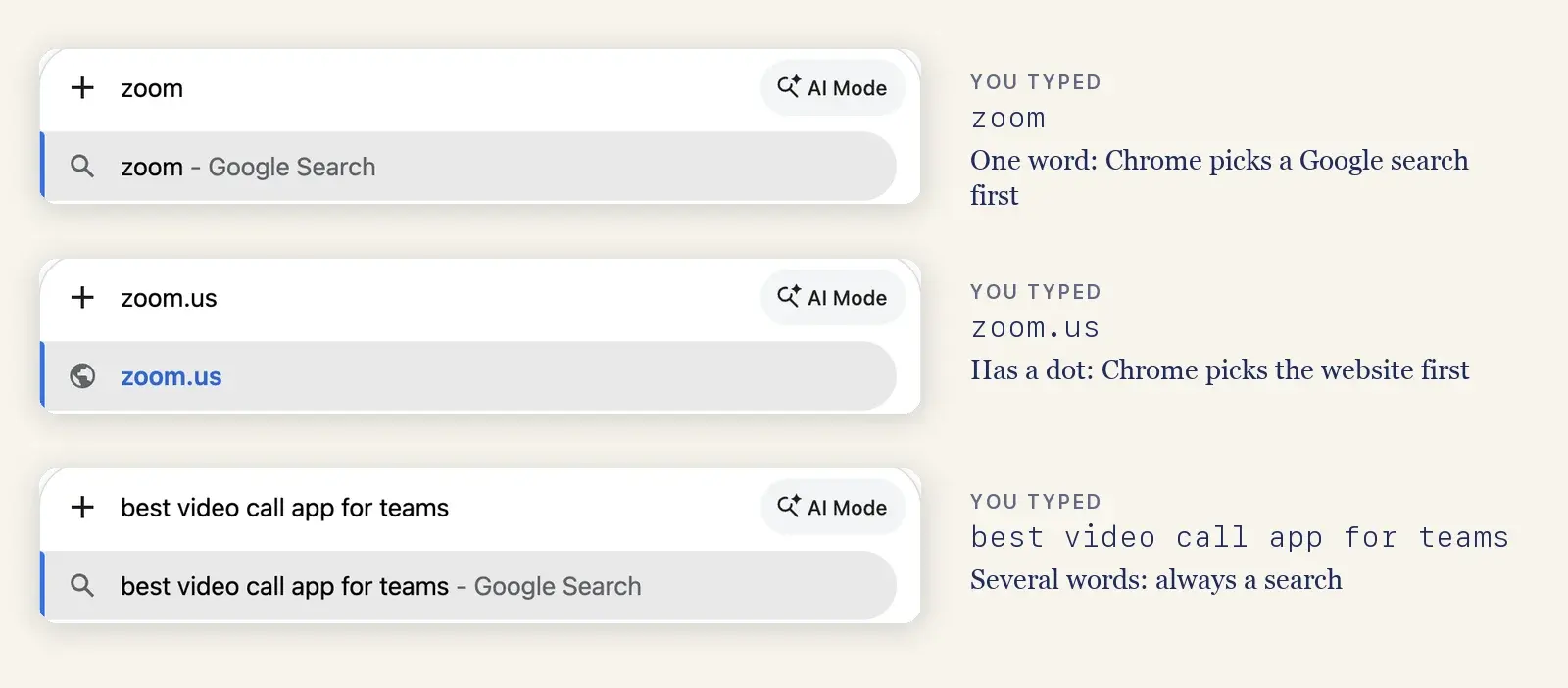
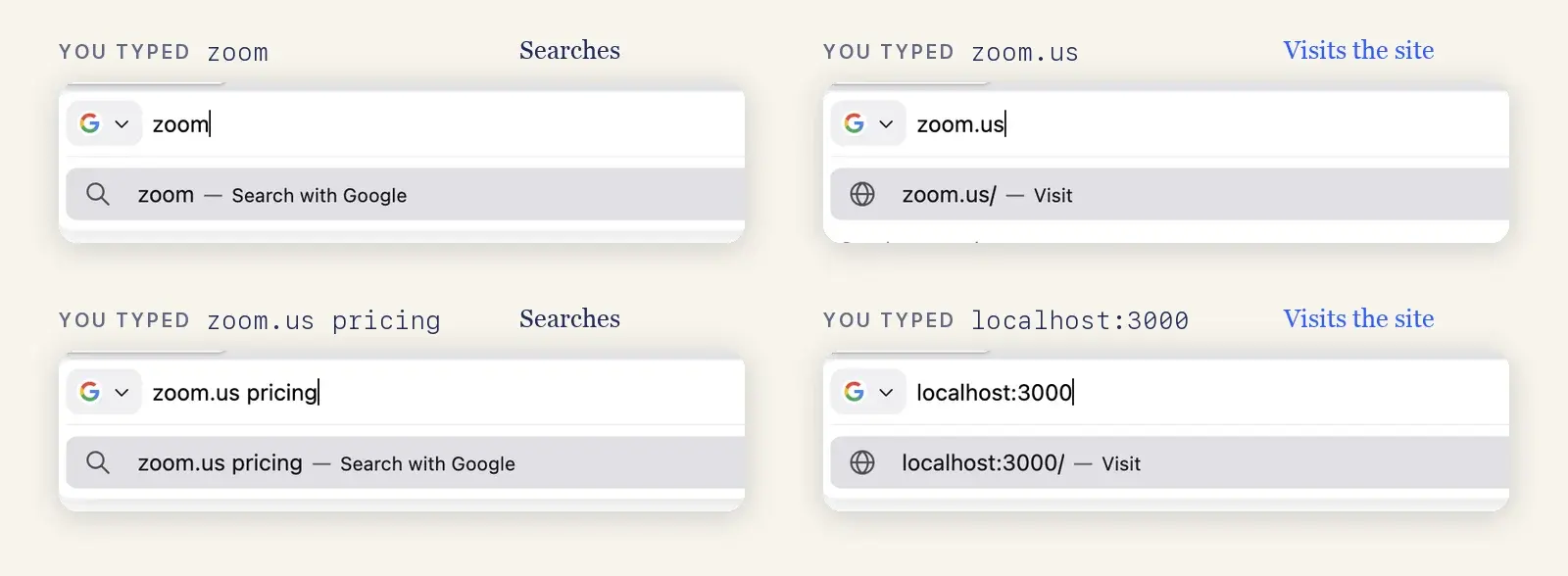
This explains a common frustration. If you've ever typed facebook and ended up on a page of search results instead of Facebook itself, the browser was doing exactly what it was designed to do, because facebook on its own is just a word. Adding the ending (facebook.com) or pressing Ctrl + Enter removes the guesswork entirely.
What happens while you're typing?
The address bar feels instant because it starts working before you press Enter. With every character you type, it combines suggestions from your browsing history, your bookmarks, your open tabs and your default search engine, and it can even calculate simple sums on the spot.
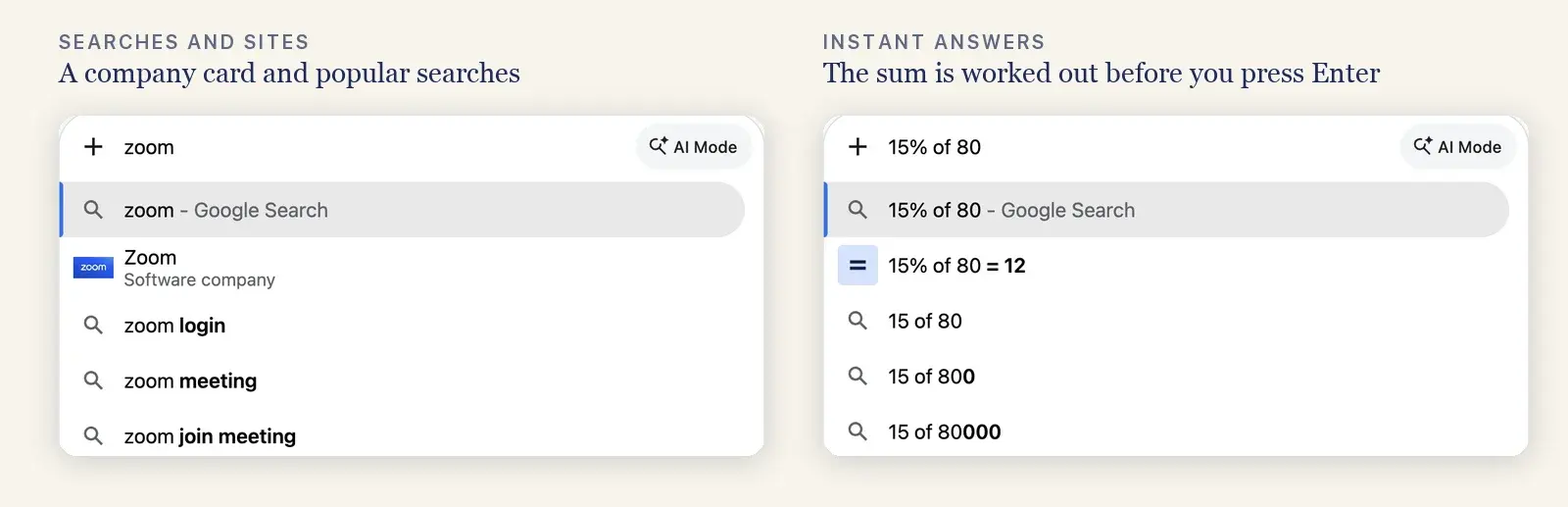
That convenience comes with a privacy trade-off. When "Improve search suggestions" is turned on, Chrome sends what you type to your default search engine as you type it, along with your IP address and cookies, and it may preconnect to the search engine in the background so results load faster. According to Chrome's privacy documentation, it holds back text that looks sensitive, such as passwords, local file names and HTTPS addresses that include a path.
Firefox behaves the same way when its search suggestions are enabled, although it switches them off by default in private windows, which I confirmed in Firefox 156's default settings. It's also less eager with instant answers: typing 15% of 80 into Firefox 156 simply offered a Google search rather than the answer. Safari has its own speed trick, a setting called Preload Top Hit that, as Apple's search settings page explains, starts loading a page as soon as Safari decides it's the best match.
If a particular suggestion keeps appearing and you never want to see it again, highlight it with the arrow keys and press Shift + Delete (Shift + Fn + Delete on a Mac) to remove it.
Should you search Google or type a URL?
The simplest rule is to search when you're still deciding and to type the address when you already know where you're going. Here's how that works in everyday situations:
| Situation | Do this | Why |
|---|---|---|
| Logging in to your bank | Type the address or use a bookmark | Fake lookalike sites and scam ads can appear in search results |
| Comparing products or prices | Search | You want several options, not one site |
| A site you use every day | Type it or bookmark it | It's faster and skips the results page |
| You're not sure how it's spelled | Search, then check the address before you click | Search corrects typos, and the address shows who owns the site |
| A link in an unexpected email or text | Type the address yourself | Links can point to convincing copies of real sites |
| An error message on your screen | Search it in quotation marks | Quotes match the exact wording |
| A question with a longer answer | Ask AI Mode (Tab, then Enter) | You get a written answer with sources to check |
Why does the search box look black, different or missing?
Plenty of people search for "search google or type a url black", and there are three common reasons the box might look unusual:
- It's black. That's dark mode, and by default Chrome follows your computer's appearance setting. To change it, open Settings, go to Appearance and set Mode to Light, Dark or Device.
- It says "Theme created by" followed by a name. Someone installed a Chrome theme, and that line credits the artist who designed it. You can switch themes under Settings, then Appearance, then Theme.
- The box is missing, or the page looks nothing like Google. An extension has most likely replaced your new tab page, so review your extensions and remove any you don't recognise. The address bar at the top keeps working either way.
And if you arrived here looking for "search google or type a url games", you're probably after Chrome's hidden dinosaur game. Type chrome://dino into the address bar and press the space bar to start playing.
How to fix it when typing an address searches or redirects
When you type a web address and get search results instead, the cause is usually one of four things:
- The input was ambiguous. Typing zoom is ambiguous, whereas typing zoom.us isn't, so add the domain ending or use Ctrl + Enter.
- Autocomplete picked a search suggestion. Sometimes the list highlights a search instead of the site you meant, so press the down arrow to choose the right line, or delete the unwanted suggestion with Shift + Delete.
- Your search settings changed. Google warns that you might have malware if your search engine changes unexpectedly, or if you try to change it and the setting won't stick.
- Your browser has been hijacked. Mozilla's support guide says that if you can't change your home page, remove a toolbar or adjust your search settings, browser hijacking is the likely cause.
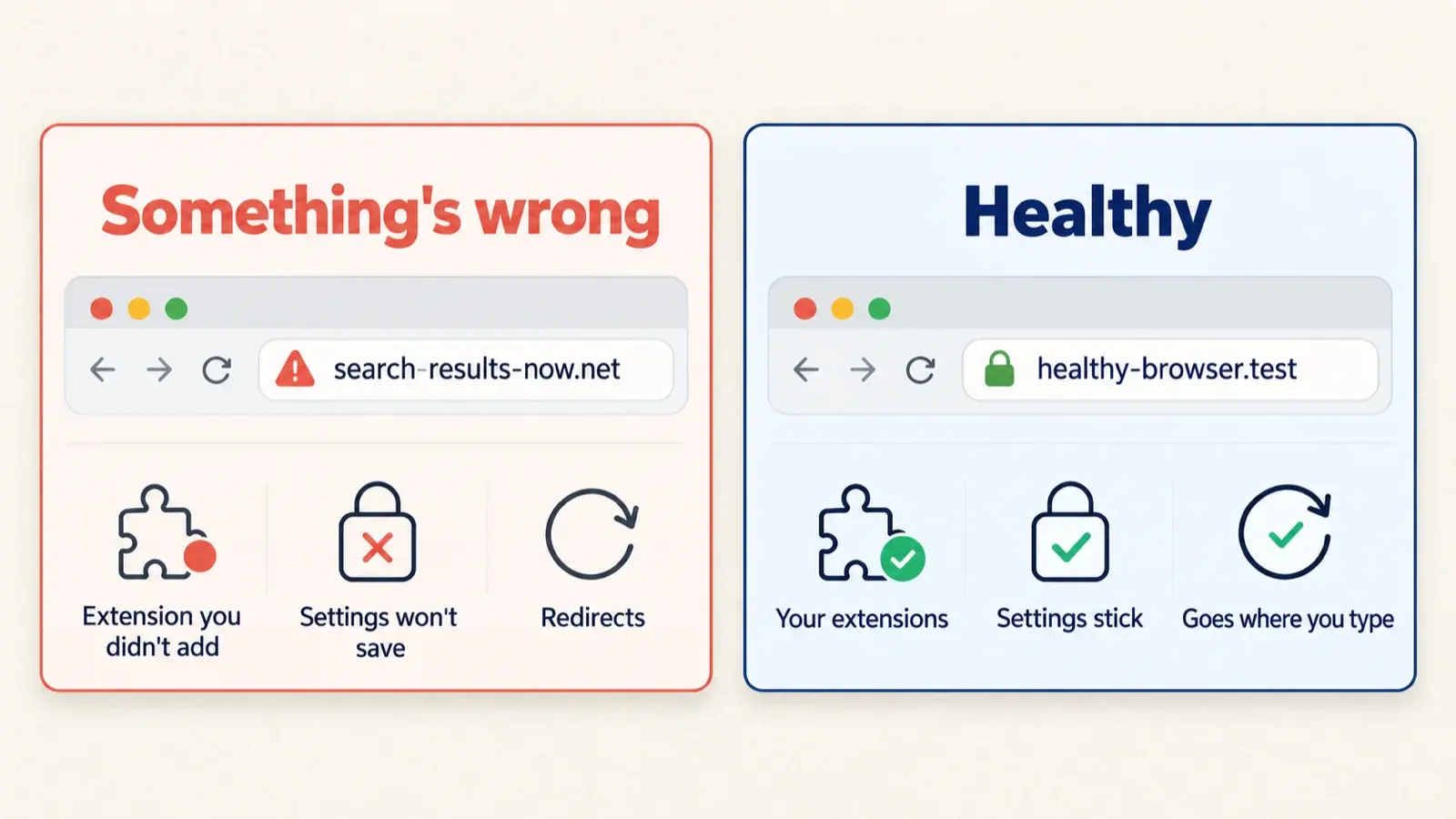
Google's malware help page lists the typical warning signs: pop-ups and new tabs that won't go away, a home page or search engine that keeps changing without permission, extensions that keep coming back after you remove them, and redirects to unfamiliar pages or ads. If you recognise any of these, work through the following steps:
- Reset Chrome by going to Settings, then Reset settings, then Restore settings to their original defaults.
- Remove any extensions you don't recognise or no longer trust, under Extensions, then Manage extensions.
- Uninstall programs you didn't knowingly install, from the Applications folder on a Mac or from Settings, then Apps on Windows.
- Run a full malware scan with your security software.
There's one important exception. On a work or school computer, your IT department may have locked the search engine setting deliberately, and Google notes that network administrators can choose it for you. In that case the locked setting is company policy rather than malware.
How to change your search engine, home page and suggestions
There's no switch that removes the phrase itself, because it's built into the browser. What you can control is the search engine behind it, the page that opens when you start the browser, and whether your typing is sent off for suggestions:
| Browser | Search engine | Home page | Suggestions |
|---|---|---|---|
| Chrome (computer) | Settings > Search engine | Settings > On startup, and Settings > Appearance > Show Home button | Settings > You and Google > Google services > Improve search suggestions |
| Firefox | Settings > Search | Settings > Home | Settings > Search > Search suggestions |
| Microsoft Edge | Settings > Privacy, search, and services > Address bar and search | Settings > Start, home, and new tab page | Settings > Privacy, search, and services > Address bar and search |
| Safari (Mac) | Safari > Settings > Search | Safari > Settings > General | Safari > Settings > Search > Include search engine suggestions |
| Safari (iPhone) | Settings app > Apps > Safari > Search Engine | Not available | Settings app > Apps > Safari > Search Engine Suggestions |
| Chrome (iPhone or Android) | Chrome menu > Settings > Search engine | Android only: Settings > Homepage | Settings > Google services |
A few details are worth knowing. Microsoft notes that Edge only lists search engines you've already used at least once, so you may need to run a search on your preferred engine first. Safari on a Mac lets you choose a separate search engine for private browsing. And if you want to change what opens when you start the browser, Google and Microsoft each have step-by-step guides for Chrome's home page and startup page and Edge's home page.
Address bar shortcuts worth knowing
Once you understand what the address bar can do, it starts to feel less like a text field and more like a command centre. All of these work in current browsers:
- Ctrl + L (Cmd + L on a Mac) jumps straight to the address bar from anywhere on a page.
- Typing a site name and pressing Ctrl + Enter adds www. and .com automatically.
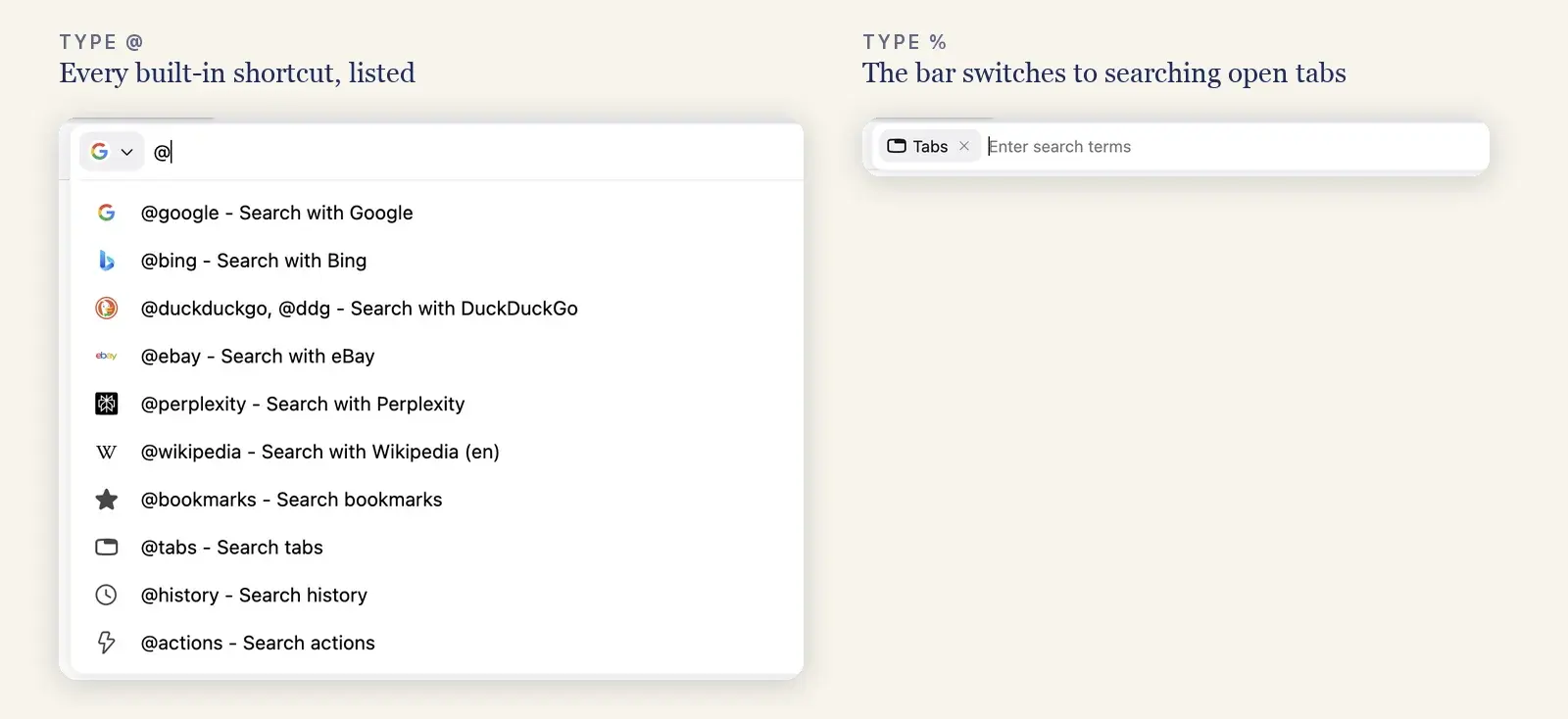
- Typing @tabs, @bookmarks or @history followed by a space searches only those, which is the fastest way to find one tab among dozens. Chrome 154 also includes @gemini and @aimode as built-in shortcuts.
- Typing a site's name and pressing Space or Tab lets you search inside that site. You can manage these shortcuts under Settings > Search engine > Manage search engines and site search.
- Typing a calculation or conversion, such as 15% of 80, shows the answer directly in the suggestion list.
- In Firefox, typing @ on its own lists every built-in shortcut: search engines such as @google, @bing, @duckduckgo and @perplexity, plus @bookmarks, @tabs, @history and @actions.
- Firefox also accepts single symbols that narrow the results: ^ for history, * for bookmarks, % for open tabs, $ for web addresses and ? for searches only.
- In Safari, Quick Website Search lets you search a site you've used before directly from the Smart Search field, as Apple's Safari guide describes.
Why "Search Google or type a URL" became a meme
Around 4,400 people a month in the US search for the "Search Google or type a URL" meme. The format is a screenshot of Google's search box with a list of suggestions underneath, usually absurd ones. As the Daily Dot explains, many of them are edited to make readers curious enough to search for the phrase themselves. Jokes about Google's suggestions date back to 2008, the year Google added them to its home page.
There's a quieter version of the joke as well: some people type the placeholder text itself into the box. Chrome treats it like any other string of words and runs a search, which is one of the ways people end up reading pages like this one.
What this means if you run a website
Most explanations of this phrase stop at the browser. There's a bigger picture, though, and it matters if you want your website to bring in more customers, because the phrase describes two completely different kinds of visitor.
Someone who types yourbrand.com has already chosen you. Someone who types "best invoicing software for freelancers" hasn't decided yet, and every company with a well-optimised page for that search has a chance of winning them. That second group is where nearly all new customers from search come from.
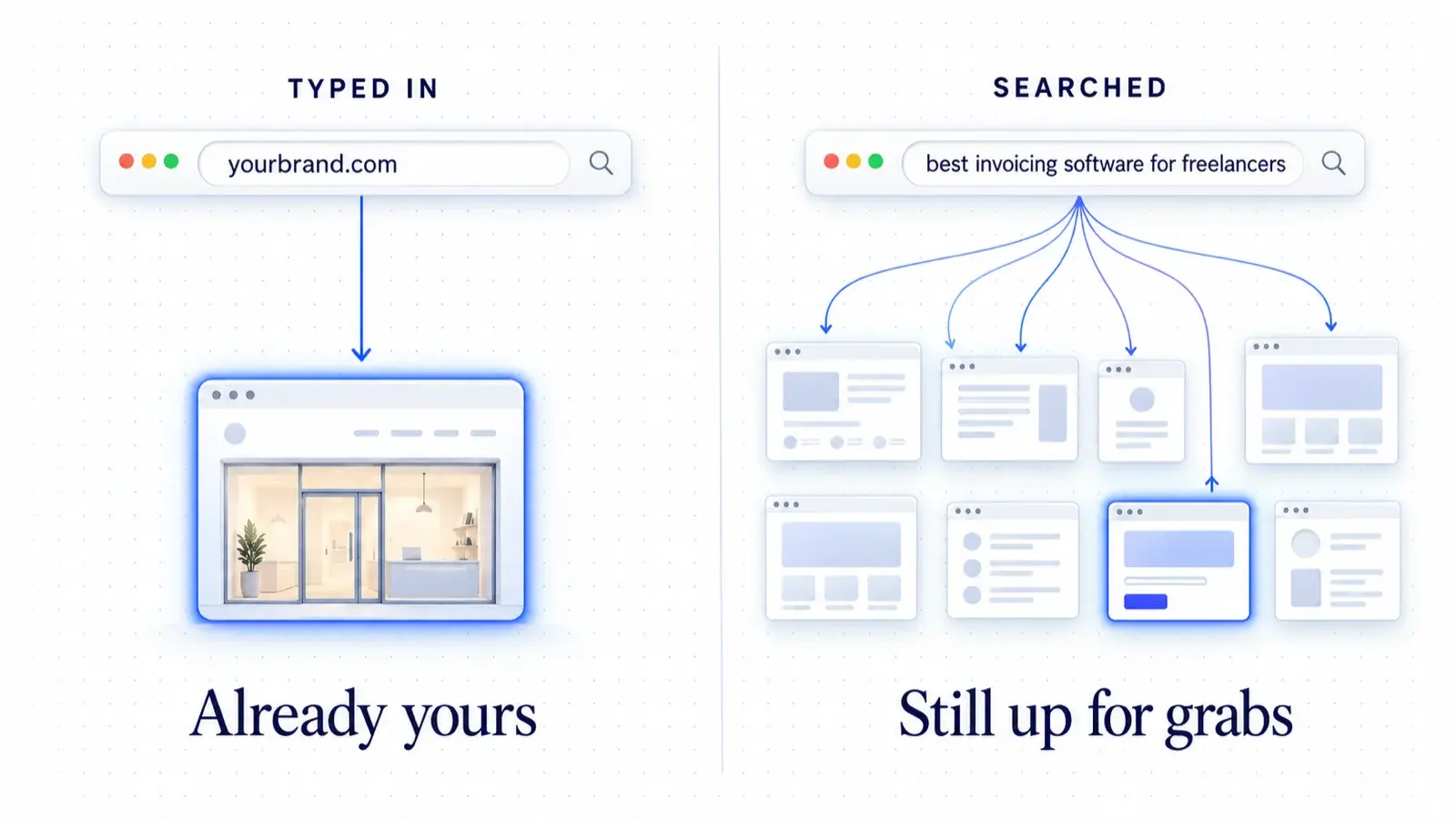
The data supports this. In Grey Matter's study of 18 B2B companies, the click-through rate on branded searches barely moved between 2025 and 2026, falling just 2%, while informational searches fell 38%. People who already know your name still find you, but the ones who are still deciding have become harder to reach, and AI Overviews are a large part of the reason.
The "Ask Google" change adds a third route. When someone asks AI Mode instead of searching, they get a written answer that cites a handful of pages, and the rest get nothing. Being one of those cited pages is what generative engine optimisation is about. You can check whether AI assistants already mention your brand with our free AI visibility checker, and track it over time by measuring citations across assistants.
You can measure both groups in Search Console's Performance report. Filter for queries that contain your brand name, then for queries that don't. The first list represents demand you've already earned, while the second shows how many new people discover you through search. If that second number is small, it's the clearest sign of where your growth is stuck.
Winning those searches starts with choosing keywords you can realistically win and grouping them into topic clusters, so search engines see your site as a source on the subject rather than a site that mentioned it once. After that, it's a matter of publishing pages that answer the question better than whatever ranks today, written in a way that AI answers are willing to cite.
Doing that once is straightforward. Doing it every week, for every question your buyers type into that bar, is where most teams stall. That's the job AutomatedSEO's article writer takes on: it finds the non-branded searches you can win, writes an article for each one in your voice, links it to your money pages and publishes it to your site, so the people who are still searching find you rather than a competitor.
Get found by the people still searching
AutomatedSEO researches, writes and publishes 30 articles a month to your connected CMS.
3-day trial · Cancel any time
Sources
Checked on 30 September 2026.
- Chromium: Omnibox user experience design
- Google Chrome Help: Search the web in Chrome
- Google Chrome Help: Use AI to search & ask about your tabs
- Google Chrome Help: How Chrome keeps your URL & search data private
- Google Chrome Help: Chrome keyboard shortcuts
- Google Chrome Help: Set default search engine and site search shortcuts
- Google Chrome Help: Remove unwanted ads, pop-ups & malware
- MDN Web Docs: What is a URL?
- Mozilla Support: What is search hijacking?
- Mozilla Support: Search suggestions in Firefox
- Apple Support: Safari User Guide for Mac, searching the web
- Microsoft Support: Change your default search engine in Microsoft Edge
- Google Blog: Go behind the browser with Chrome's new AI features (18 September 2025)
- 9to5Google: Google Chrome tests sending users straight to AI Mode instead of Search (June 2026)
- Chromium Blog: A safer default for navigation: HTTPS
- Google Chrome Help: Set your homepage and startup page
- Google Chrome Help: Manage tabs in Chrome
- Apple Support: Change Search settings in Safari on Mac
- Microsoft Support: Change your browser home page
- Daily Dot: Search Google or Type a URL Meme, Explained
- Official Google Blog: At a loss for words? (Google Suggest, 25 August 2008)
- Grey Matter: The Great Declick
- Search Console Help: Performance report (Search results)
Written by
Founder and SEO specialist
Mielad Niekzad is the founder of AutomatedSEO and an SEO specialist.
More from Mielad Niekzad